 *iOS release is coming soon!
What's Dayring?
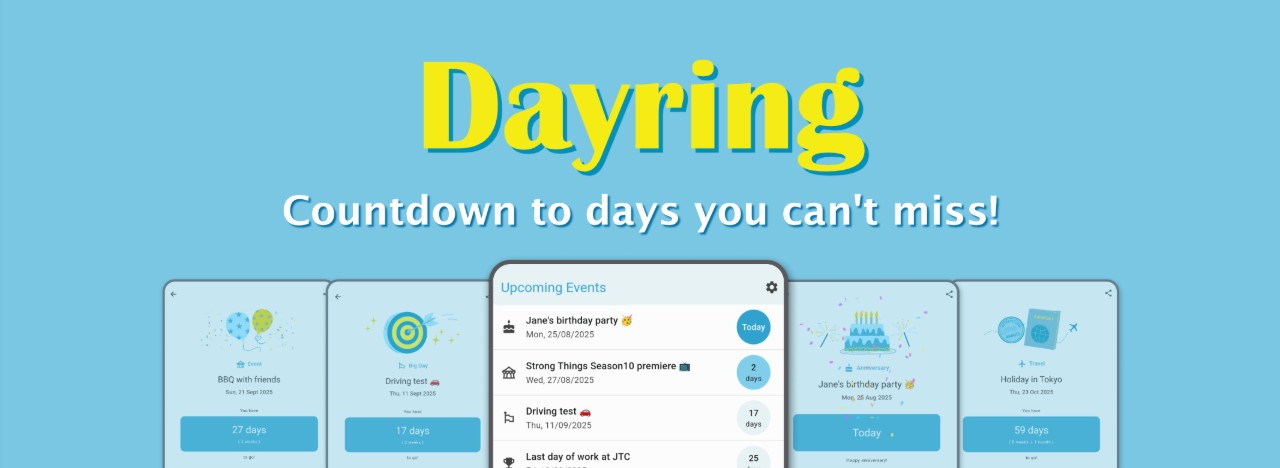
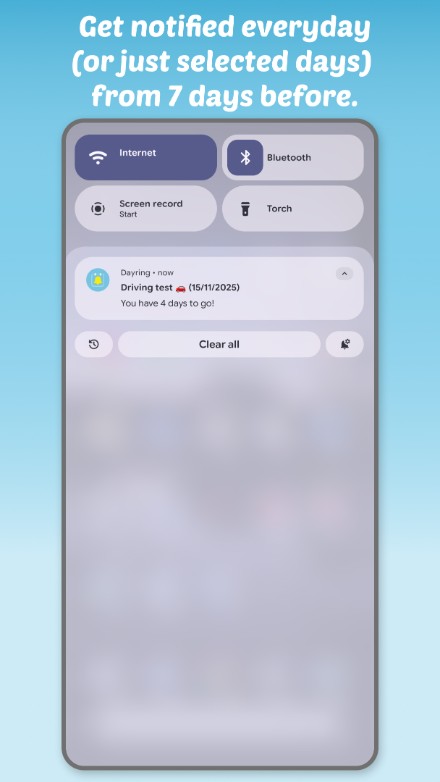
Dayring is a mobile app that counts down to your important dates with notifications starting 7 days before the event.
 *iOS release is coming soon!
Why Dayring?
Usability
Simple and lightweight interface
Design
Clean and delightful appearance
Functionality
Minimal yet sufficient features
🟡 Free!
🟡 No Ads!
Download from here:
- Play Store (Android)
- App Store (iOS) - we are working on iOS release.
Features
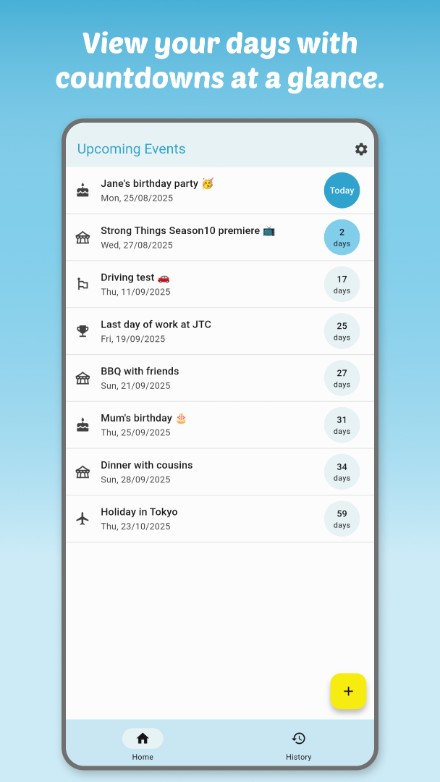
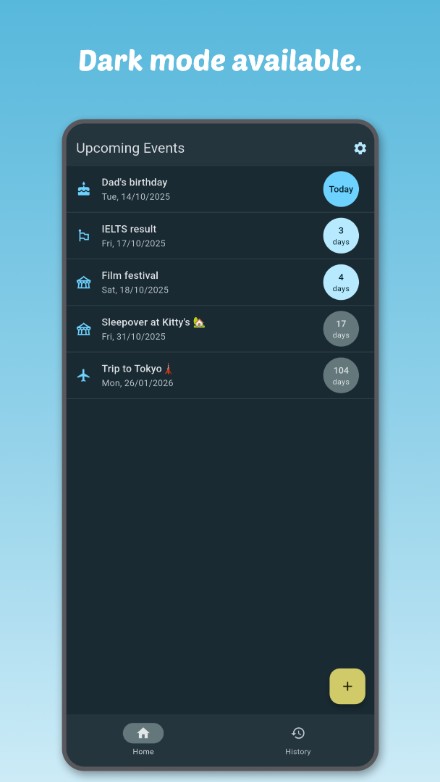
List of upcoming dates (Home)
You can see all your upcoming dates with countdown timers in a list format.
- Tap each item: Open Details
- Swipe each item: Delete the date
- button: Add a new upcoming date
- settings icon: Access Settings page
Add a new upcoming date
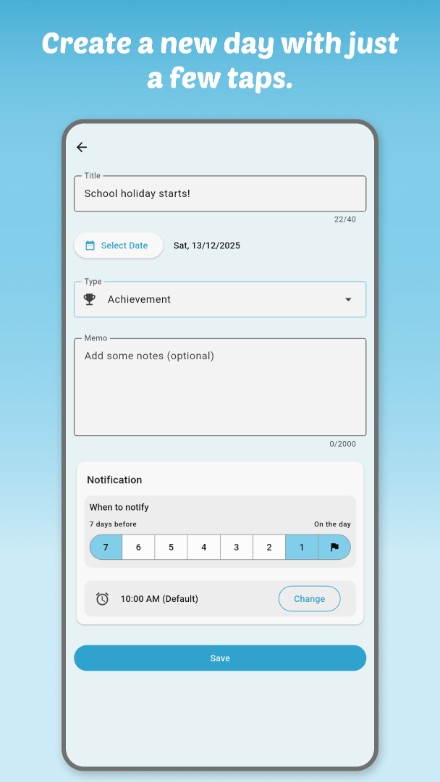
From button in Home screen, You can add a new date with the following information:
- Title
- Date
- Category - determines the appearance of the Detail page
- event General: General events
- festival Event: Public event, party, gathering
- flight Travel: Holidays, business trip
- cake Anniversary: Birthdays, marriage anniversary
- emoji_flags Big Day: Exam, 1st day of school/work
- emoji_events Achievement: Graduation, last day of work
- Memo
- Notification
- When to notify - select days to be notified, from 7 days before to on the day
- Time - notification time
- input icon: Add a date shared by another person
Which to choose is absolutely up to you! Some ideas are:
Details
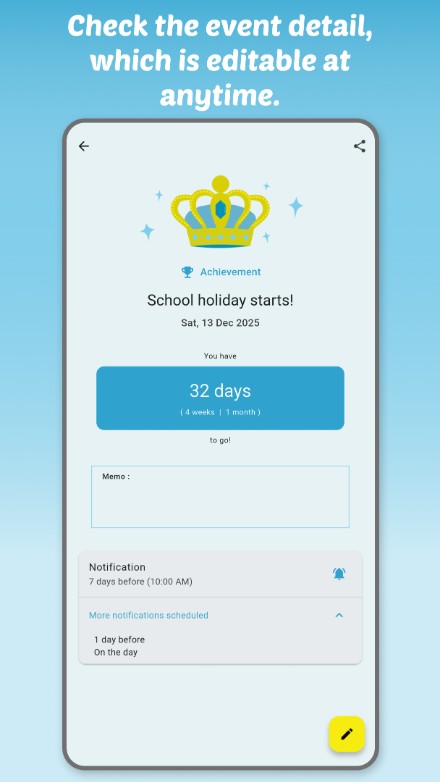
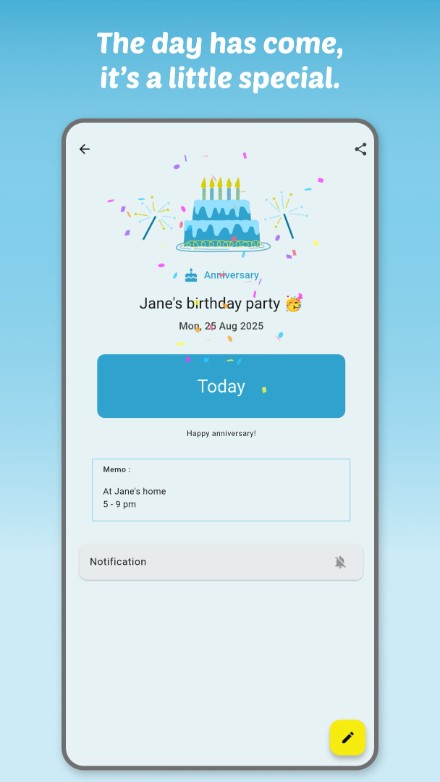
When you tap each date in Home, you can see comprehensive information about the selected date:
- Countdown display (days/weeks/months remaining)
- Category-based illustration
- Memo content
- Notification settings
- button: Modify information or notification settings
- Special animation displayed on the actual day!
List of past dates
You can see all past dates for reference.
- Tap each item: Open Details
- Swipe each item: Delete the date
Settings
In Settings, you can configure/use/view following functions:
User setting
Language
Available language options:
- System default (follows device setting)
- English (US)
- English (UK)
- Japanese
If your device is set to a language other than those listed above, English (US) will be used as the system default.
Notification Time
Set the default notification time. You can also specify different times for each date individually.
Appearance setting
Theme mode
Select light or dark mode:
- Based on System (follows device setting)
- Light mode
- Dark mode
Data Backup
This is a data backup tool.
- Export: Save your date data to a local file (
dayring_backup_sv*.db) - Import: Select and restore from a previously saved backup file
If the database version of the saved data doesn't match the current app's database version, the import will fail.
How to
Link to this documentation
About
Information about the version and the contact
Sharing
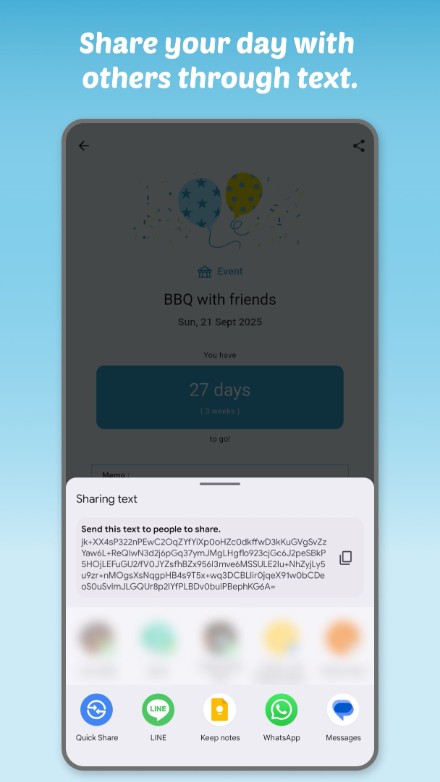
You can share an event with other people.
Sender
Share an event you created with others via messaging apps with following steps:
- Open Details of the event you want to share
- Tap share icon
- An encrypted text code is generated. Send it through your selected app or copy and paste the text to share with others
Receiver
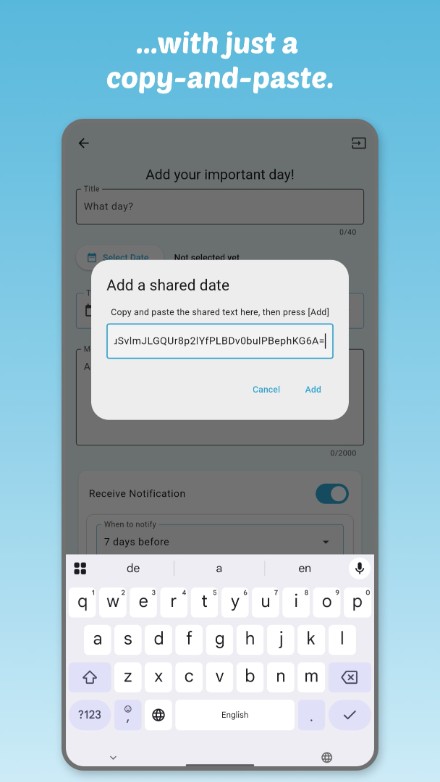
Create a new event from shared text code with following steps:
- Open Add page (from in Home)
- Tap input icon
- Copy and paste the shared text into the text field
- The shared data will populate the form. Review the details and tap
Notifications
You can schedule notifications for each important date.
- Notifications can be scheduled from 7 days before the event (or tomorrow if fewer than 7 days remain) up to the day itself
- Multiple notifications can be scheduled
Permissions
To receive notifications, please grant the necessary permissions:
- Both Allow notifications and Allow setting alarms and reminders must be enabled
- When you first launch the app, permission dialogs will appear. Please ensure both are turned on
- Alternatively, you can enable notifications through your device settings:
- Settings > Apps > Dayring > Notifications > All Dayring notifications
- Settings > Apps > Dayring > Alarms & reminders > Allow setting alarms and reminders
Notification Timing
Notifications may not always appear exactly at the set time. Since notifications consume resources such as battery, the timing of notifications may be automatically adjusted by the device's own battery saving features or resource optimization settings.
If notifications do not appear or the timing is unstable, this may be resolved by disabling or changing the battery saving features for the app or device.
For example:
- Settings > Apps > Dayring > Battery usage
→ Allow background usage - Also check manufacture-specific battery-saving configurations and try disabling battery optimization or cancel restrictions.
Language Support
This app supports the following languages:
- English
- Japanese
*iOS release is coming soon!
Privacy Policy
Dayring Privacy PolicyContact
For enquiries and feedback, please feel free to email us: